Tools & Cleaning • $329.99
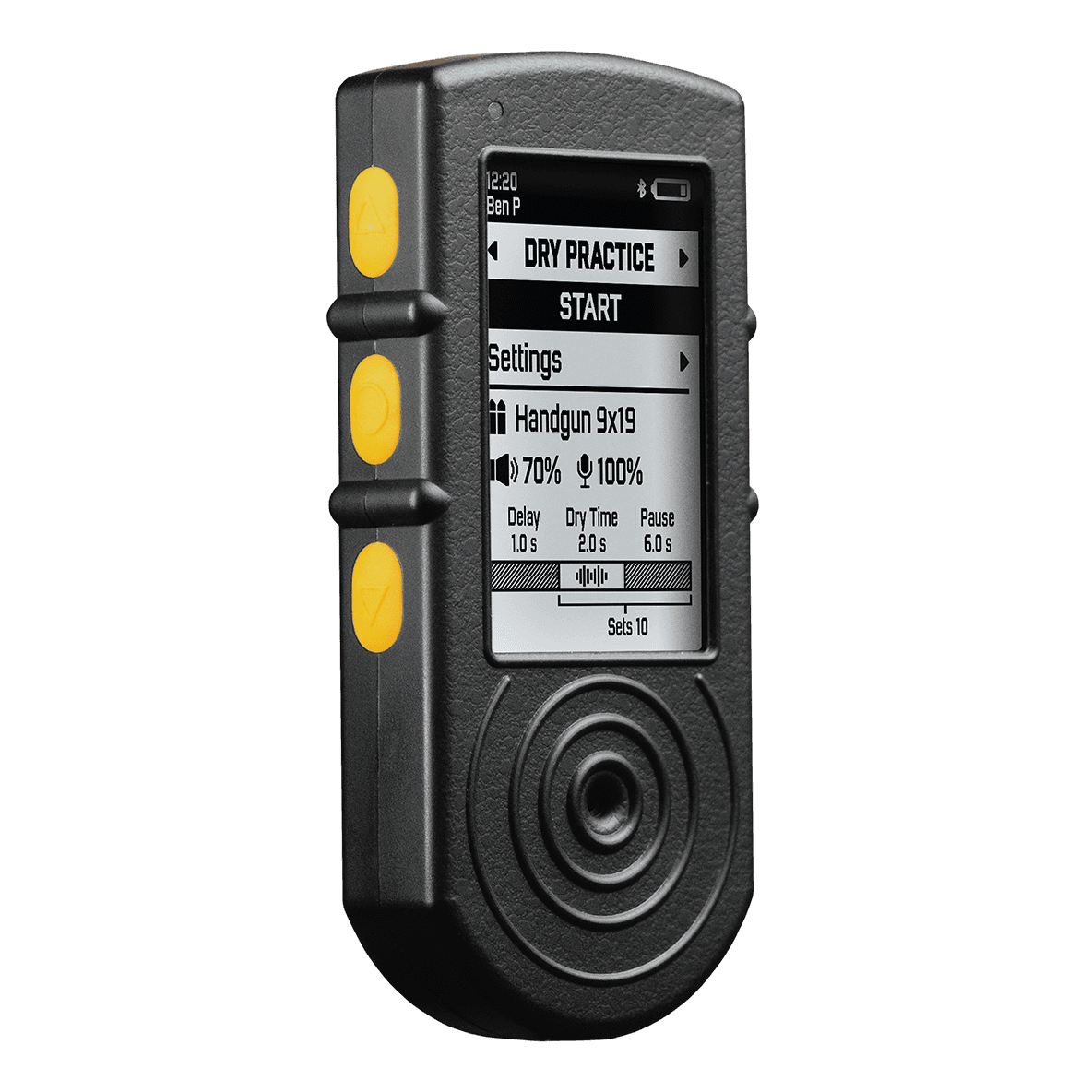
Shooters Global SG Timer 2
- Bluetooth + free mobile app
- PractiScore 2 integration
$329.99
Shop at IntelGoons
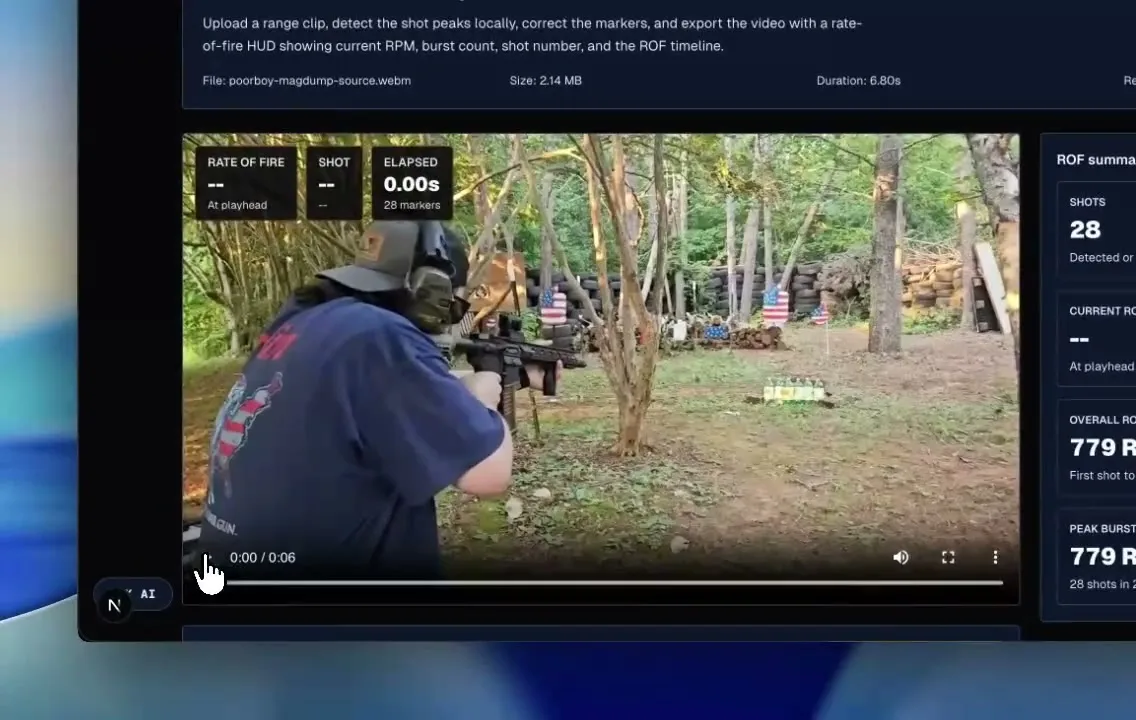
Learn how to turn rapid-fire range footage into a checked ROF overlay. Upload the clip locally, correct the shot markers, group the burst, review peak RPM, and export the video plus CSV/JSON data.
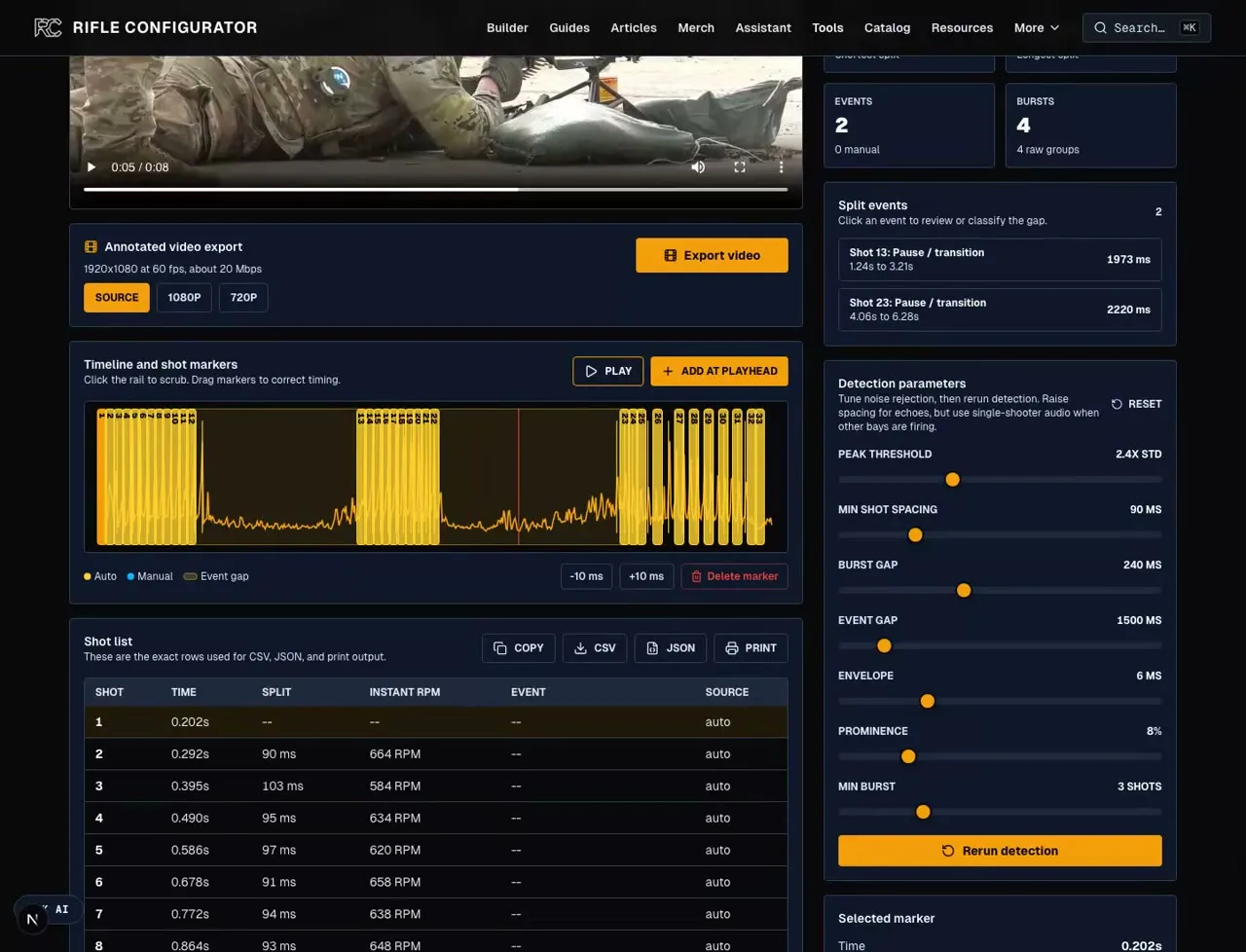
Turn rapid-fire range footage into a checked burst-RPM video. The free ROF video overlay tool detects shot peaks locally, lets you correct every marker, then exports a video with burst RPM, shot count, split timing, and the marker timeline burned into the clip.
Best clip: Use a short rapid-fire segment where your gun is the loudest audio source and recoil, muzzle flash, or the shooter's rhythm is visible enough to verify each marker.
Best workflow: Upload locally, wait for detection, play the clip, fix markers, tune burst grouping, then export the MP4 overlay and CSV or JSON for the numbers.
Use the right overlay: Use the ROF overlay for rapid-fire cadence and burst RPM. For a full drill review with first shot, splits, reloads, and transitions, use the shot timer video workflow.
Use the standalone ROF video overlay page to upload a clip, correct the shot markers, review burst RPM, and export the video overlay. The audio-only calculator farther down is separate.
Start with a short rapid-fire clip, open the uploader, review the waveform, select the burst, and export once the marker count matches the video. The example footage is Creative Commons Attribution footage from PoorBoy Arms' YouTube video.
The finished overlay keeps the footage and numbers together: live burst RPM while the string is active, shot number, elapsed time, and a marker rail that makes the count easy to audit later.
Rapid-fire footage is harder than normal split review because the peaks are close together. Keep the clip short, make sure the audio codec decodes in the browser, and verify every high-RPM burst on the video before sharing the number.
| Factor | Target | Why it matters |
|---|---|---|
| Audio codec | Browser decodes it | If the tool says it cannot decode audio, convert the sample to WebM with Opus audio or a clean H.264/AAC MP4 and run it again. |
| Clip length | 10 to 30 seconds | Short clips decode faster and make burst review realistic. Trim walking, setup, scoring, and dead air before using the calculator. |
| Dominant sound | Your gun owns the track | The detector sees impulses, not intent. Nearby bays, steel hits, echoes, and clipped audio can add markers that need manual cleanup. |
| Visual proof | Recoil or muzzle flash visible | ROF numbers should survive a frame-by-frame sanity check. If a marker does not line up with a shot, fix the marker before trusting RPM. |
| Burst shape | One string at a time | The tool can handle pauses, but a tight clip with one or two firing strings produces cleaner peak burst and overall ROF readings. |
New shot timers, video analysis tools, and drill resources for tracking range performance.
Treat automatic detection as the first pass. The finished export is only credible when the waveform markers, video evidence, and burst rows all describe the same string of shots.
| Step | Action | Output |
|---|---|---|
| 1. Load | Click the empty video panel or Choose video | Local video preview, decoded audio, initial shot markers, and waveform peaks. |
| 2. Verify | Play the clip and compare markers against visible shots | A shot count that matches the footage instead of the loudest sounds in the bay. |
| 3. Correct | Drag markers, nudge by 10 ms, add missed shots, or delete extras | Clean timing points for each real round in the string. |
| 4. Group | Tune minimum spacing, burst gap, and minimum burst count | Burst rows that match the firing cadence you are trying to measure. |
| 5. Export | Save MP4 or WebM, CSV, and JSON | A shareable video overlay plus data for logging or later audit. |
Use this widget for quick audio ROF checks. For footage with a synced video overlay, use the standalone video overlay tool.
This ROF calculator estimates shot timing, burst structure, and rounds per minute. Processing stays local to your browser.
Media input
WAV, MP3, M4A, or MP4 with a readable audio track.
Processing pipeline
Detection parameters
Burst RPM is calculated from marker timing, so the marker list is the source of truth. A single echo marker can inflate the fastest split. A long pause can make overall ROF look slow. Read the burst rows before drawing conclusions.
| Metric | Meaning | Read it this way |
|---|---|---|
| Current ROF | RPM at the playhead | Use this while scrubbing the video to see how cadence changes inside a burst. |
| Overall ROF | First marker to last marker | Useful for the whole clip, but it drops when the clip includes pauses, resets, or setup time. |
| Peak burst | Fastest burst group | This is usually the number people want from Super Safety, FRT, binary, and rapid semi-auto videos. |
| Split time | Time between markers | A single bad marker can create a fake high RPM. Validate the fastest split before quoting it. |
| Burst CSV | Spreadsheet rows | Use it for start time, end time, shot count, burst duration, mean interval, and RPM. |
| Analysis JSON | Full audit trail | Preserves the file metadata, detection parameters, markers, split rows, and burst list. |
| MP4/WebM overlay | Shareable clip | Shows current RPM, burst count, shot number, elapsed time, and the shot-marker timeline on the footage. |
Start with marker count. If the clip shows 19 shots, the marker count should be 19 before you quote peak burst, overall ROF, or current ROF.
Then inspect the fastest cluster. Rapid strings create real close splits, but echoes and audio clipping can create fake ones. Play that section, watch recoil, and delete anything that is not a real shot.
Finish by saving both data formats. CSV gives you burst rows for spreadsheets. JSON preserves the full detection settings, marker list, split rows, and burst list.
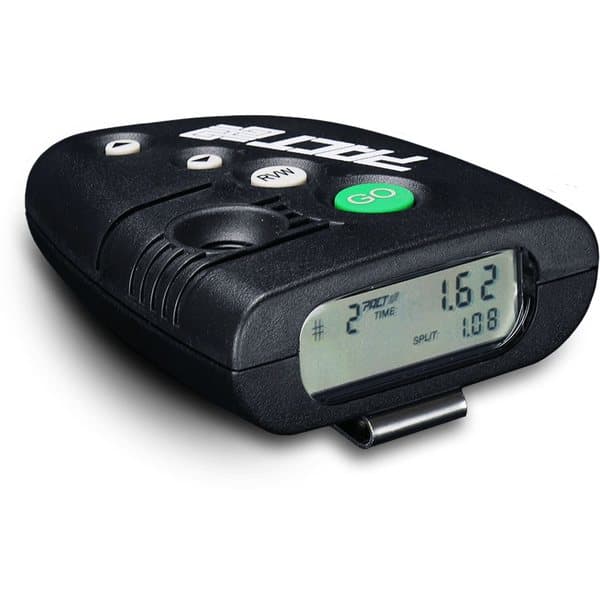
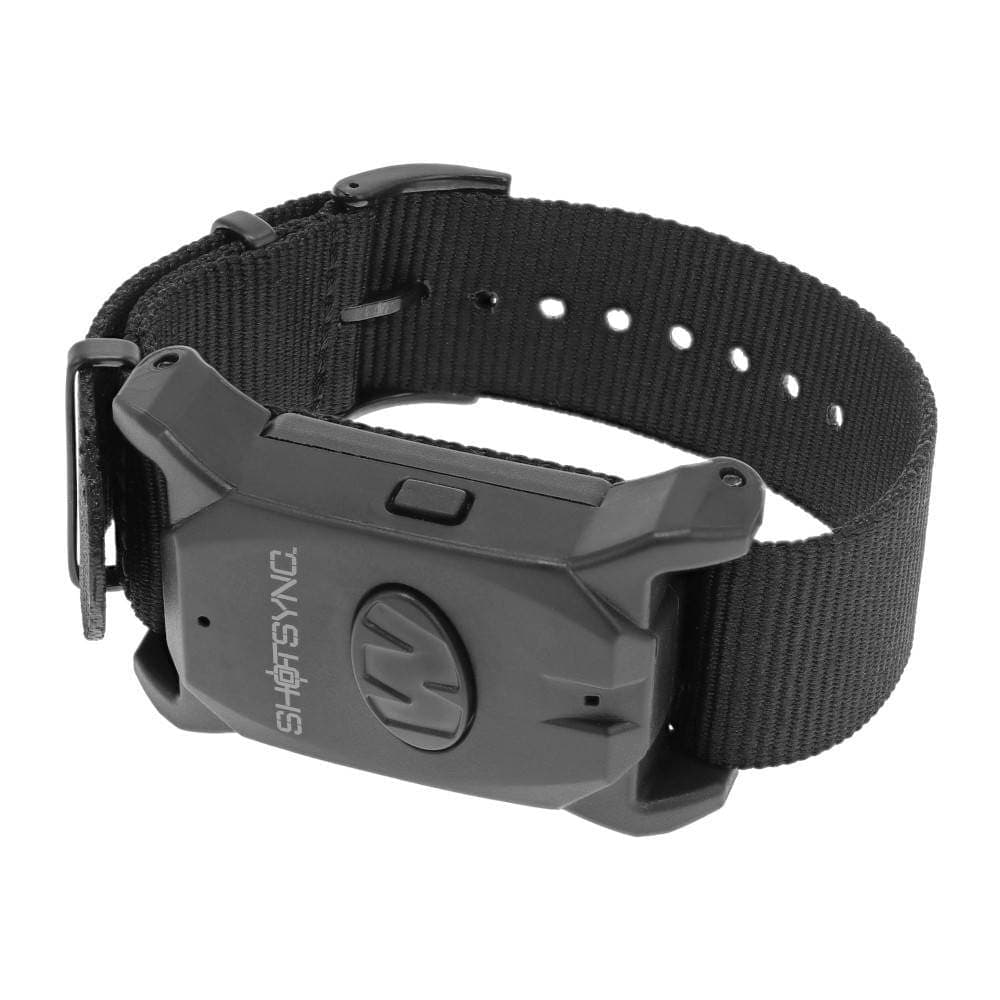
Video ROF is useful for burst review, coaching, and verifying a clip before posting it. Hardware timers are still better for live starts, par beeps, and normal drill work. If you need both, combine the ROF overlay with the best shot timer guide and log drills from the drill library.
Affiliate links (?)

Avid shooter with 10+ years of experience including competition shooting, an associate member of the Professional Outdoor Media Association (POMA), and a member of the National Shooting Sports Foundation (NSSF) and Safari Club International (SCI). Built 10+ AR-pattern rifles and several handgun platforms for home defense, competition, and suppressed night shooting.
This page contains affiliate links. Purchases through these links support the site at no extra cost to you. Read the affiliate disclosure
Ready to continue? Here's the recommended next guide:
Step-by-step shot timer video workflow for your own range footage. Covers trimming, local browser analysis, shot-spacing tuning, marker correction, CSV/JSON export, and annotated video review with the free Rifle Configurator shot timer video annotator.
Continue exploring with these related resources
Step-by-step shot timer video workflow for your own range footage. Covers trimming, local browser analysis, shot-spacing tuning, marker correction, CSV/JSON export, and annotated video review with the free Rifle Configurator shot timer video annotator.
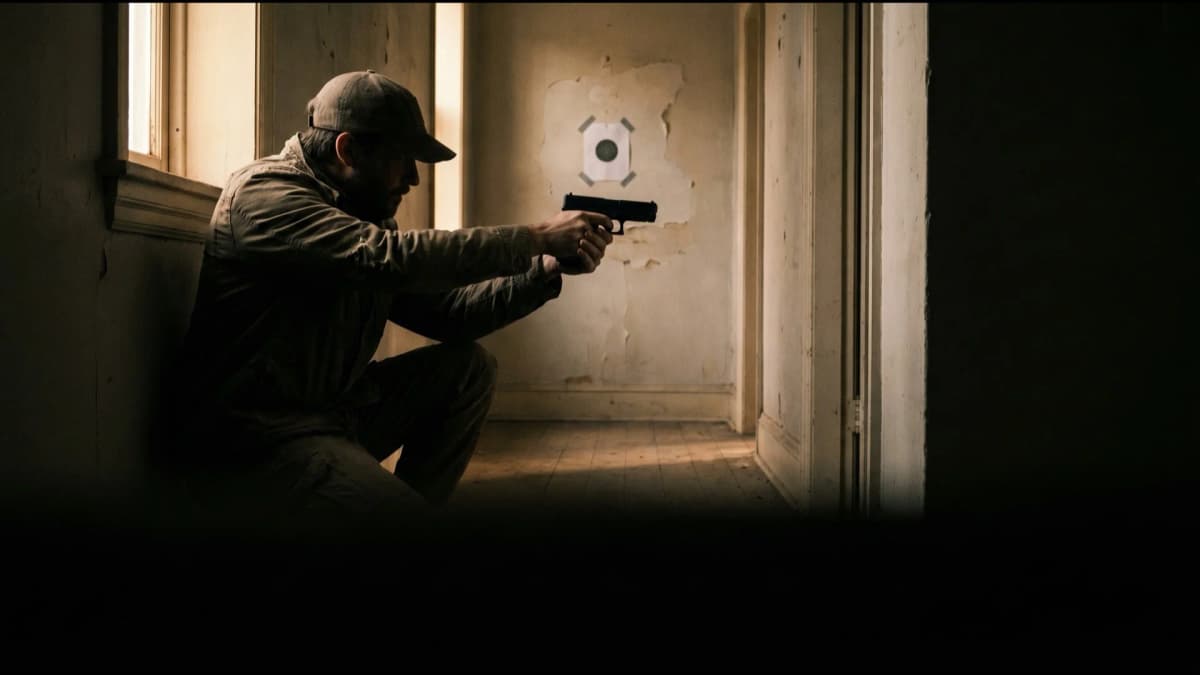
Dry fire is the highest-ROI, zero-ammo-cost way to build trigger control, draw speed, and sight tracking at home. This guide covers the non-negotiable safety protocol, the core drills that actually transfer to live fire, how to use scaled printable targets in a hallway, and the dry fire aids worth buying: SIRT pistols, laser trainers, dry-fire mags, and snap caps.
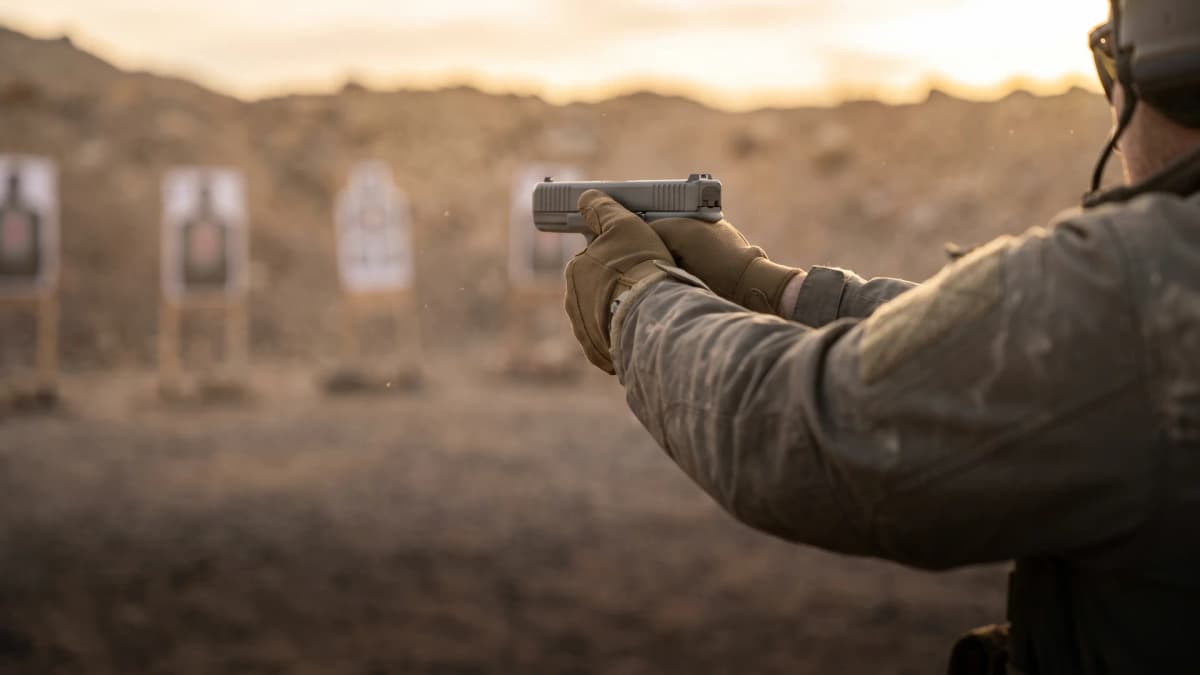
Pistol shooting fundamentals built in order: a stable athletic stance, a high two-handed grip with the support hand doing the clamping, iron-sight versus red-dot eye focus, trigger placement through reset, recoil management, honest target diagnostics, and a structured first 50-round session.
Related articles and industry updates
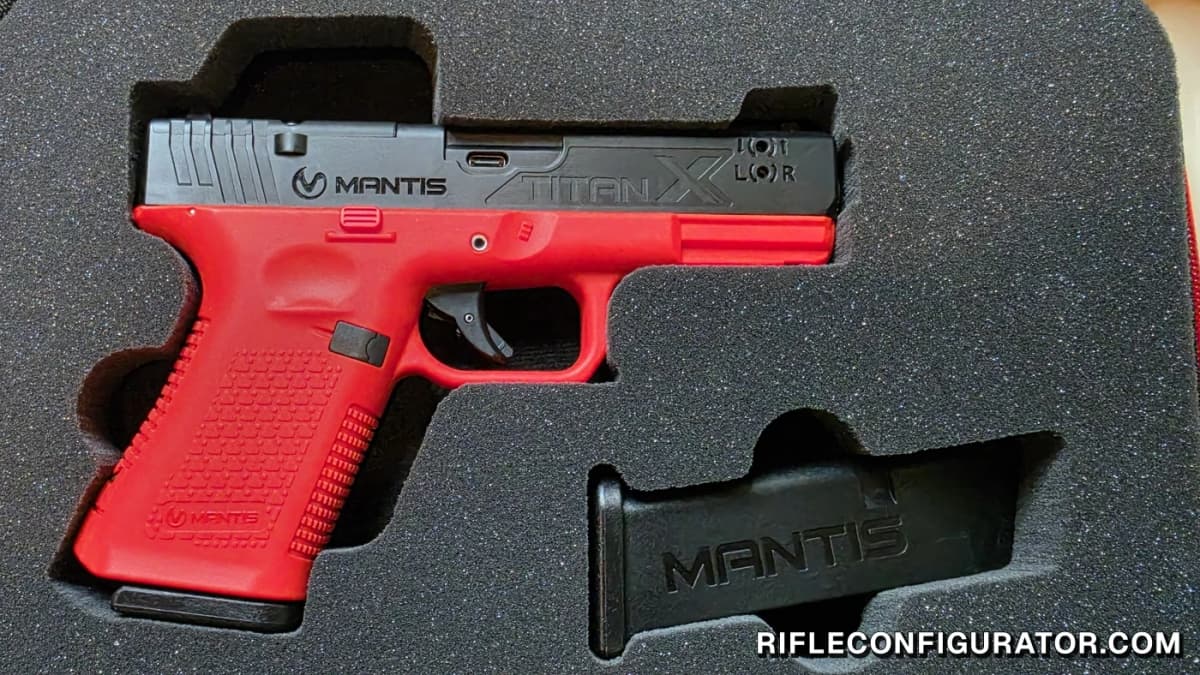
Hands-on with the Glock 19 Mantis TitanX: a 4 lb Glock-style trigger, droppable weighted mags, and MantisX trigger-press analytics in an inert trainer. The fixed slide is the one real limit.
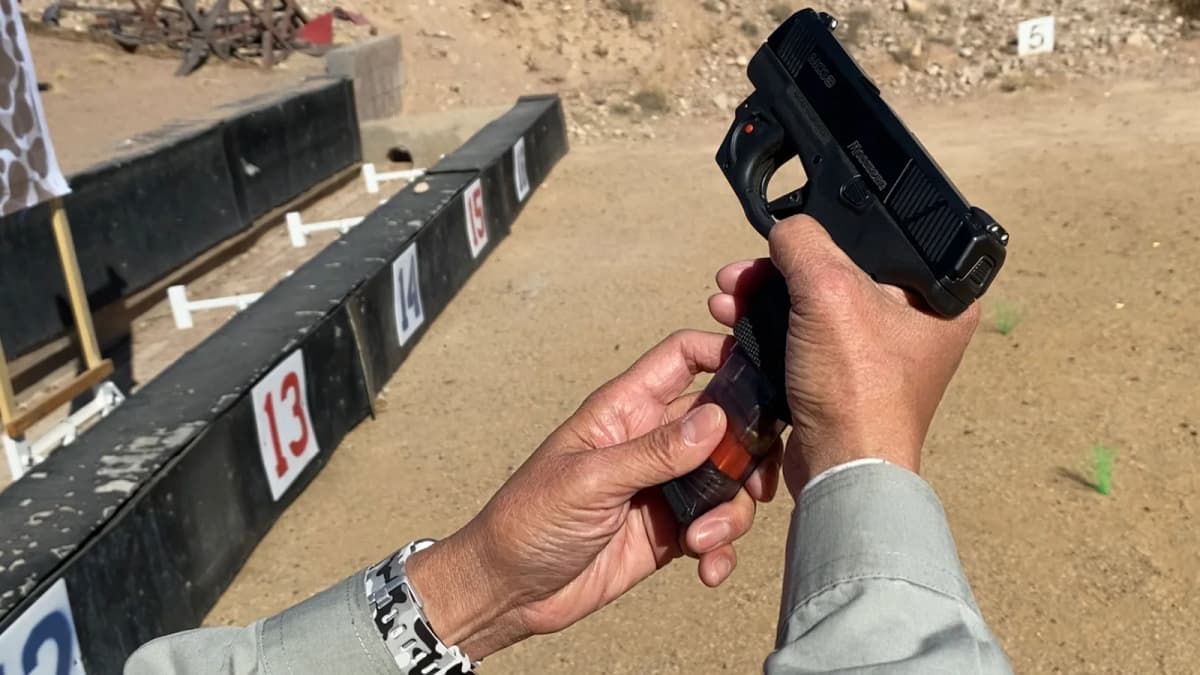
Magpul has filed BMAG trademarks covering firearm training magazines intended for dry-fire practice and loading drills. The name appears in filings from both the United Kingdom and United States and on Magpul's intellectual-property page.
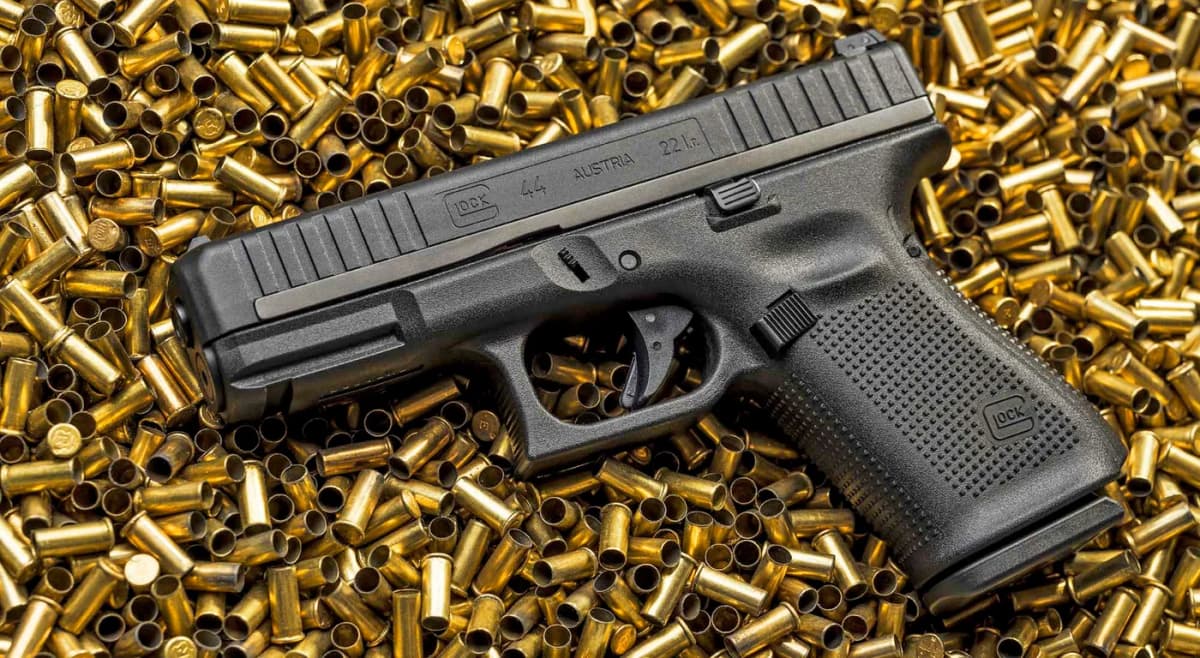
The Glock G44 15-round magazine is in stock now, selling for $27.99 at Primary Arms after shipping to dealers in May 2026. The new polymer double-stack magazine brings rimfire capacity to parity with the G19 for the first time since the G44 launched in 2020.